Users & roles
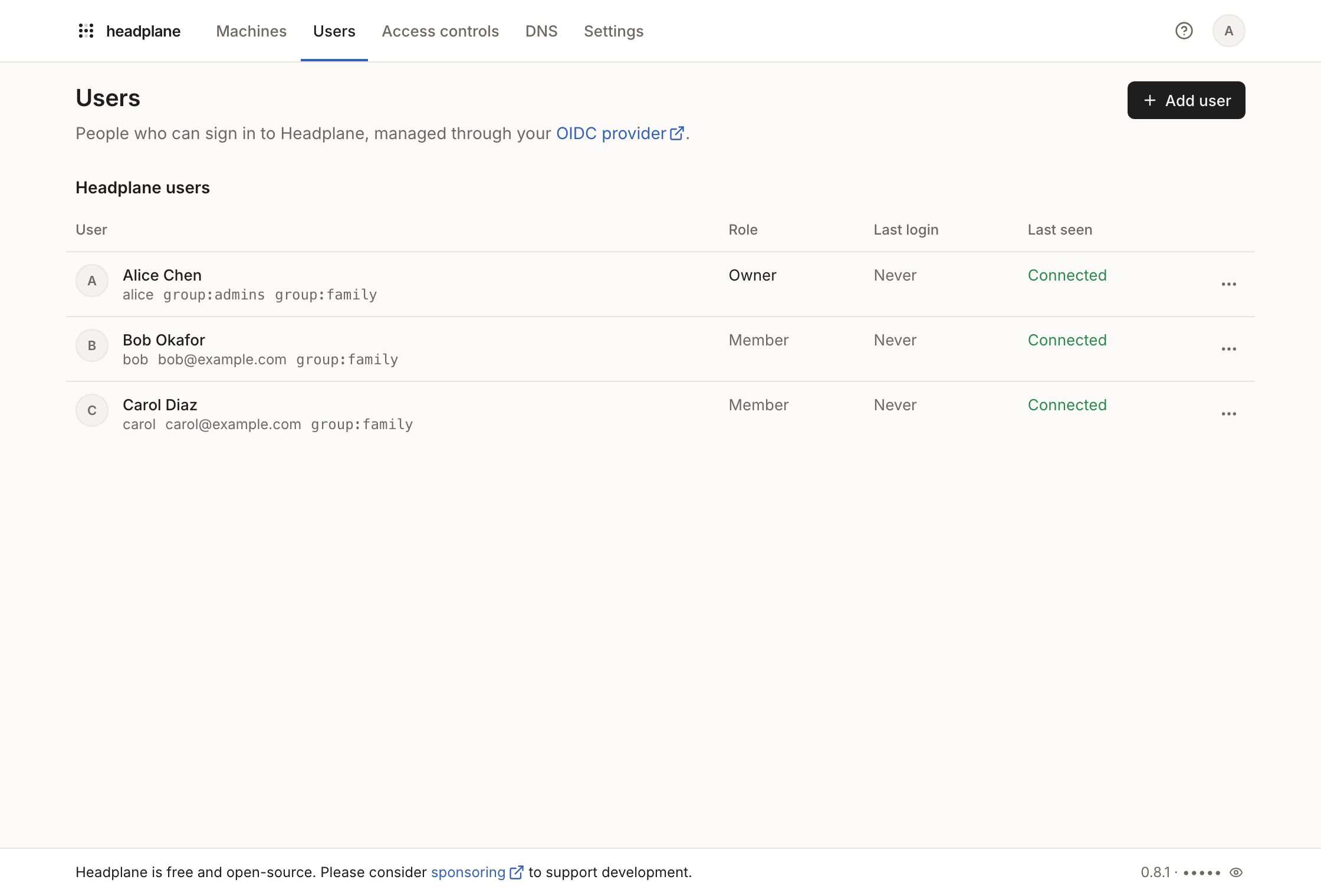
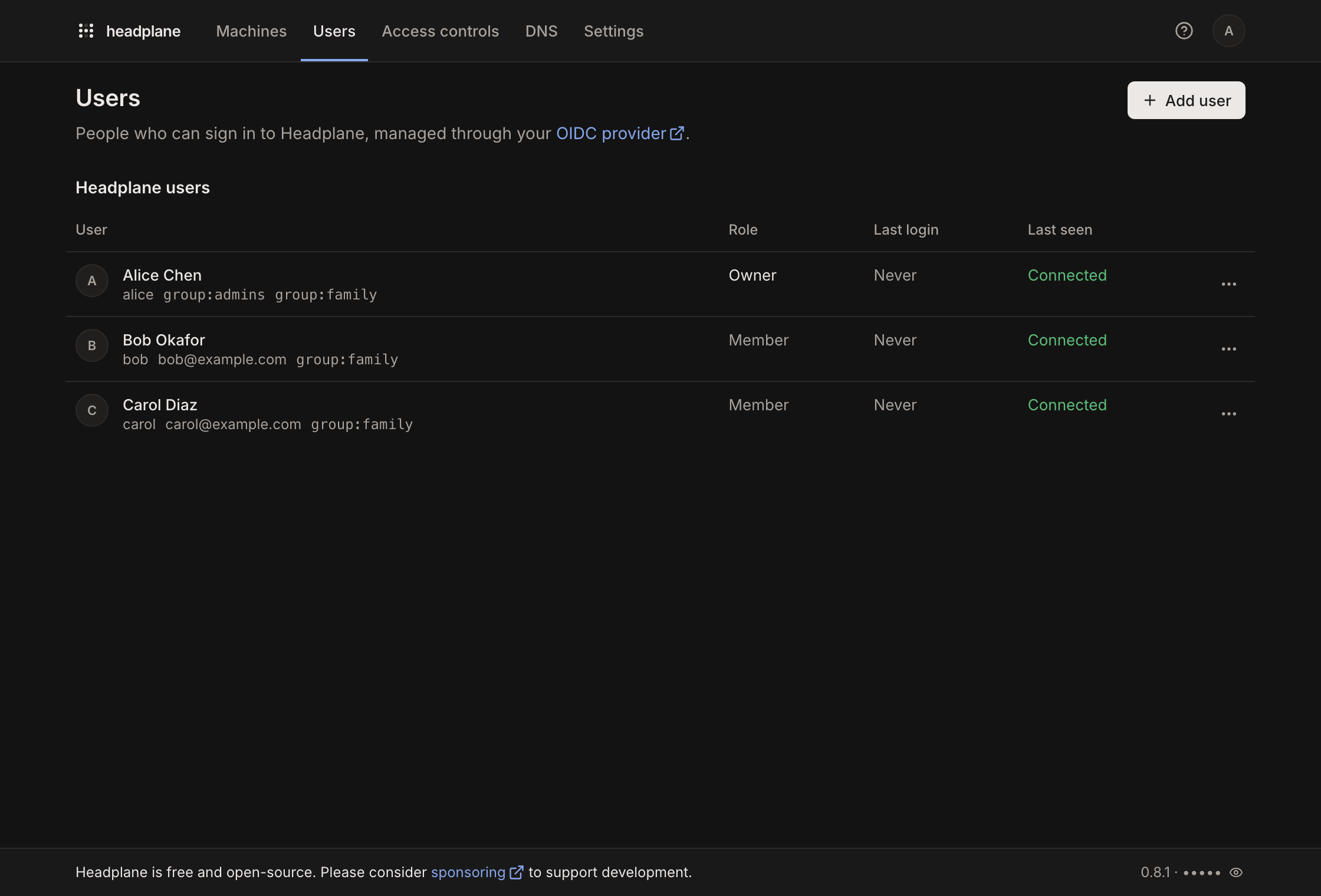
Northplane keeps its own accounts, separate from Headscale's users. An account is created the first time someone signs in through SSO or proxy authentication. Its role decides what that person can do in Northplane, and its link to a Headscale user decides which machines and auth keys are theirs.
Roles
| Role | Can do |
|---|---|
| Owner | Everything, including transferring ownership. There's exactly one owner. |
| Admin | Everything except transferring ownership. |
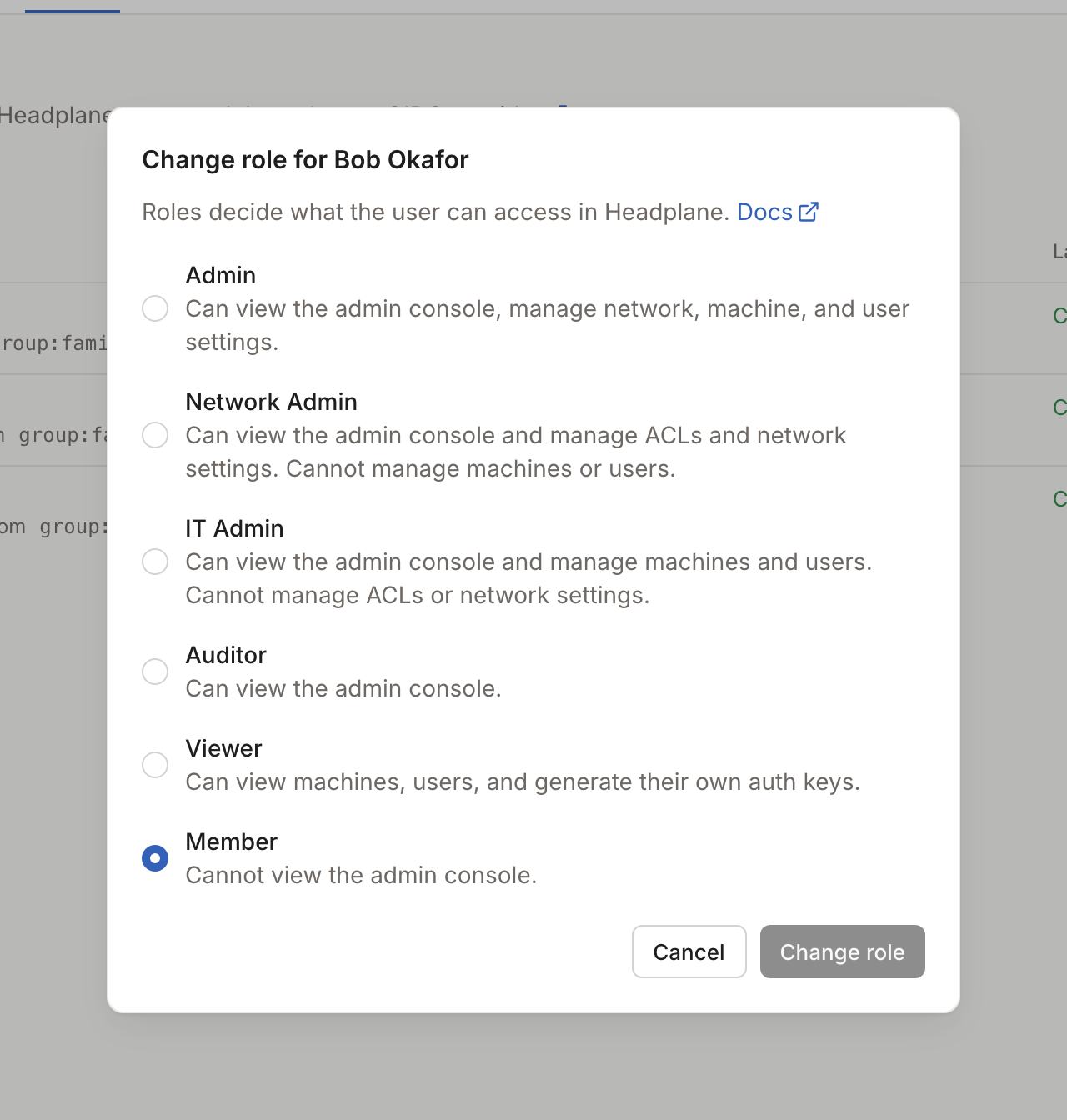
| Network Admin | Manage ACLs, DNS and network settings, view machines and users, create auth keys. |
| IT Admin | Manage machines, users, settings and sign-in restrictions. View, but not change, ACLs and DNS. |
| Auditor | View everything, and create auth keys for themselves. |
| Viewer | View machines and users, and create auth keys for themselves. |
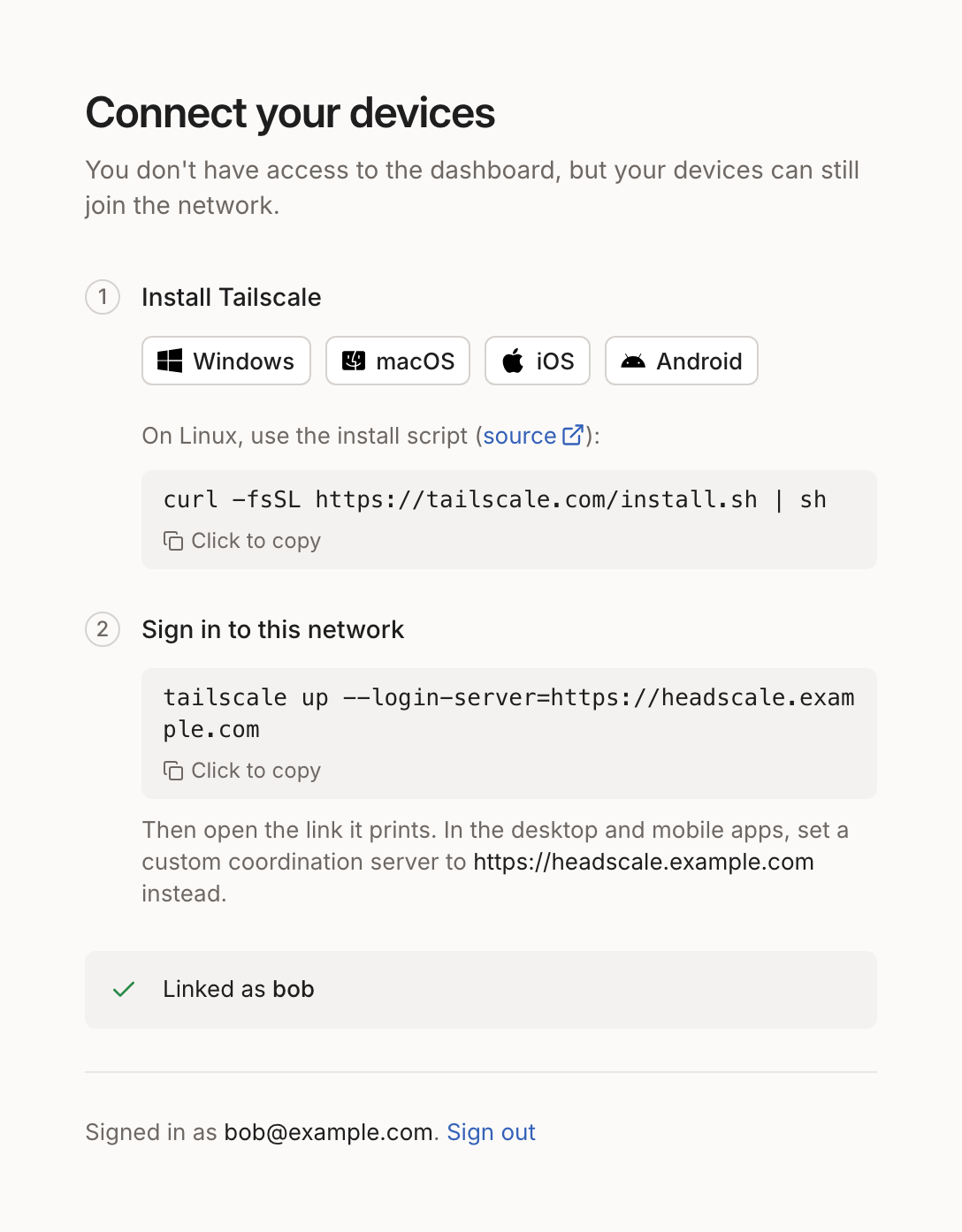
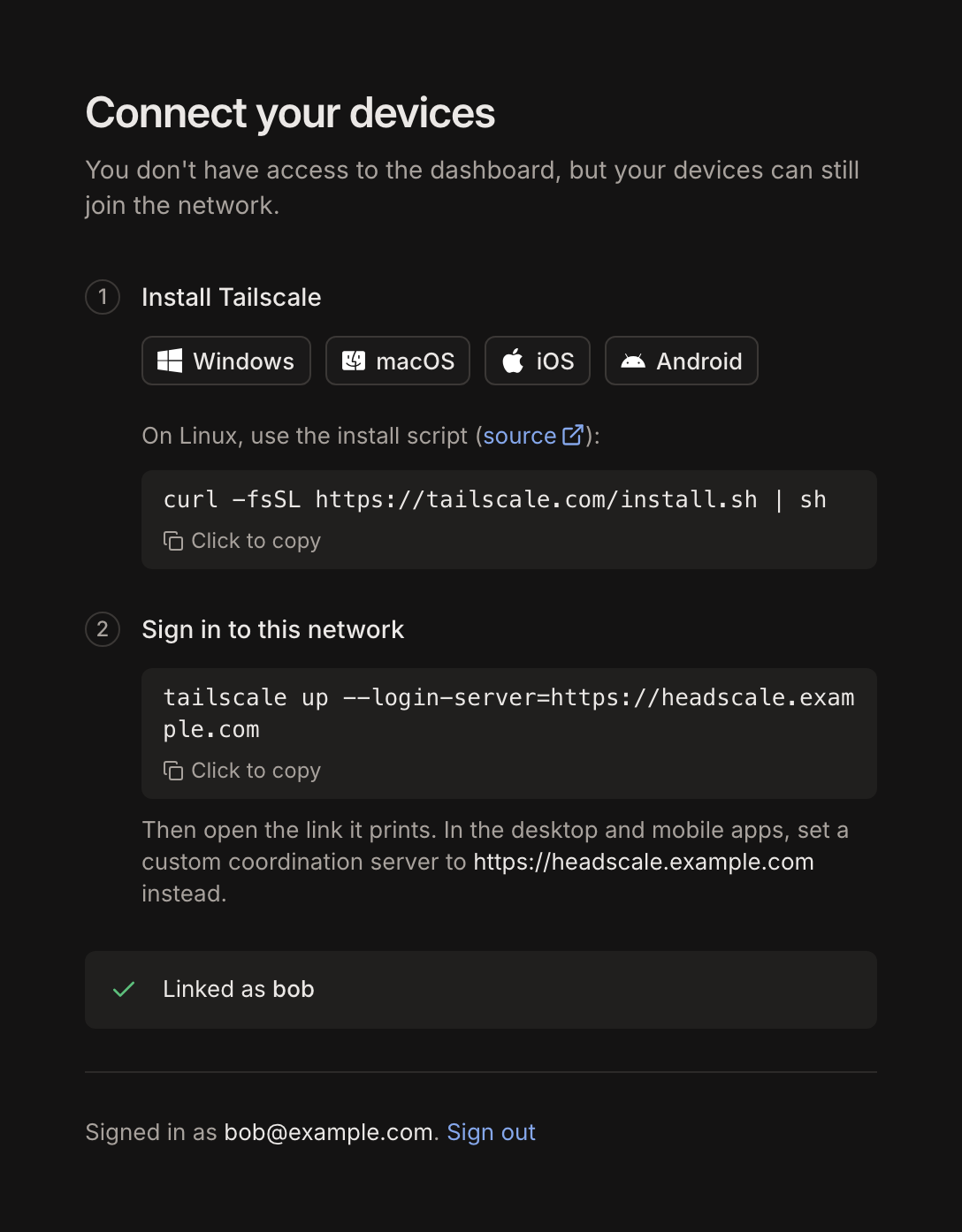
| Member | No access to the dashboard. They see a home page that helps them connect their devices. |
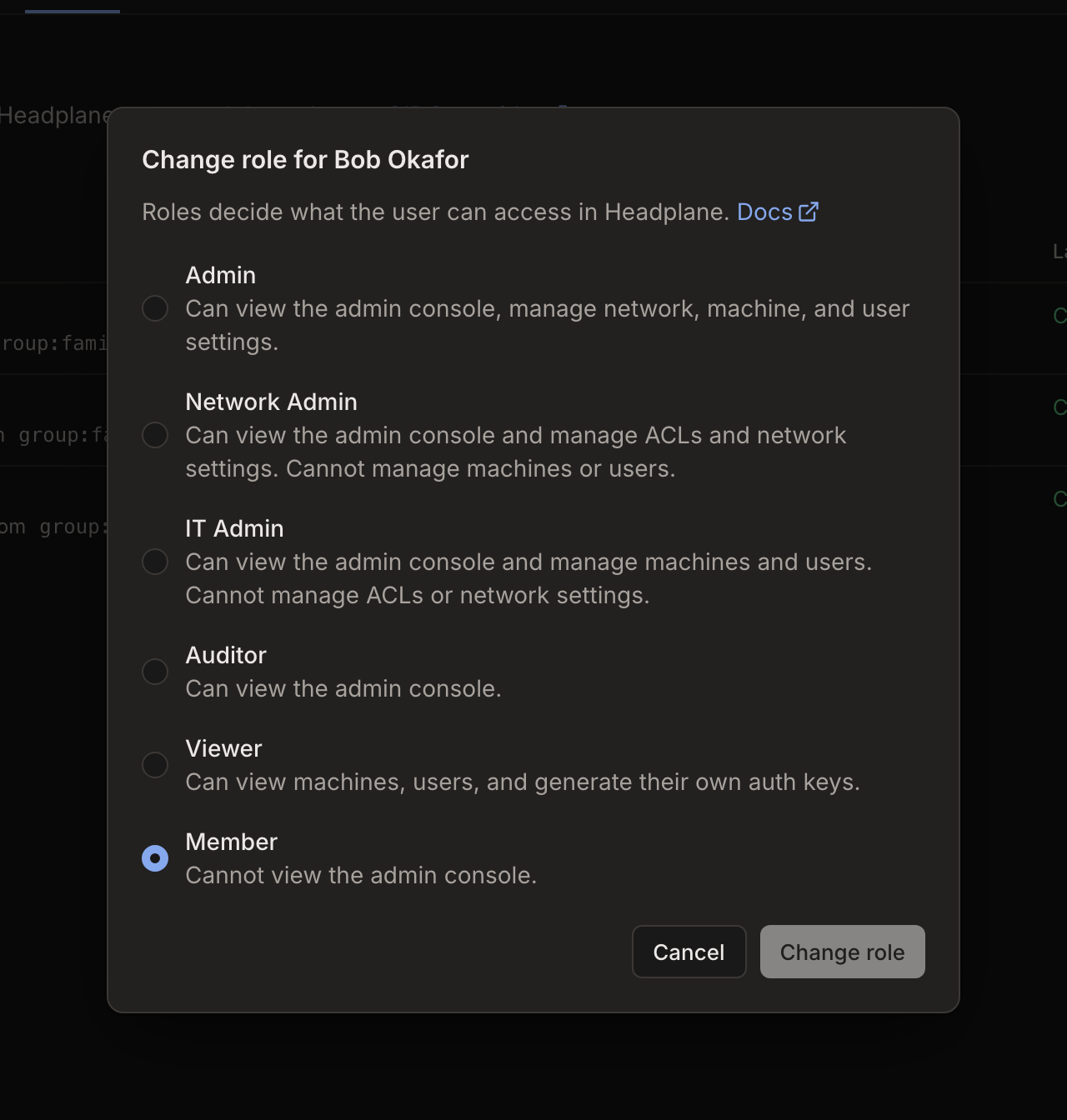
The first person to sign in becomes the owner. Everyone after that starts as a member, until an owner, admin or IT admin changes their role on the Users page. With SSO, new accounts can start with a different role, or take theirs from the identity provider. See Roles from the identity provider.
Signing in with a Headscale API key grants full access, with no role. See API keys.
Linking to Headscale users
Each account can be linked to one Headscale user, which makes that user's machines and auth keys the account's own. Auditors and viewers need a link to create auth keys for themselves, and Browser SSH uses it to pick who to connect as.
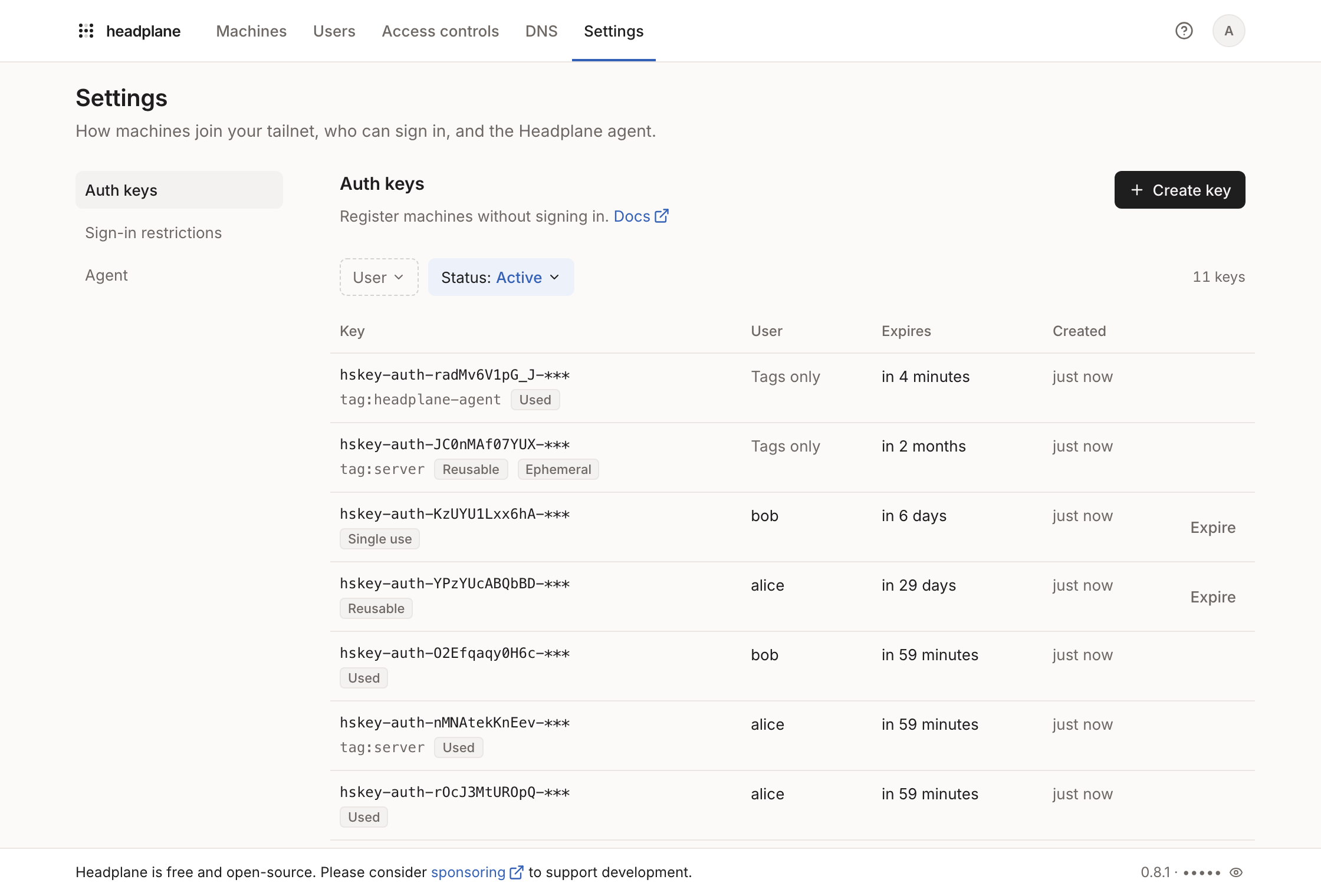
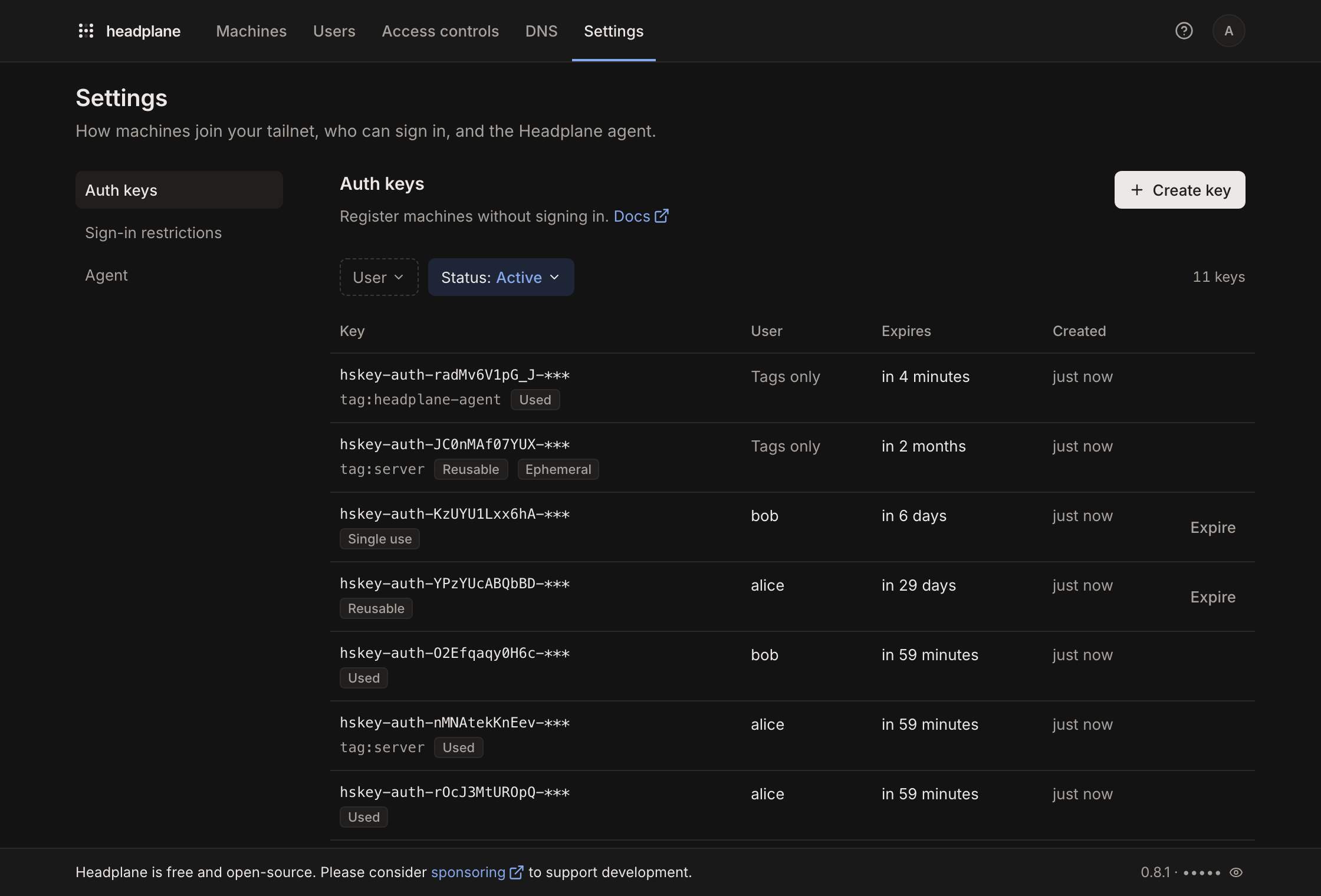
Northplane links an account automatically when it finds an unclaimed Headscale user with the same SSO subject or the same email address. It tries when someone signs in, and again whenever an unlinked account opens Northplane. So if Headscale creates users through SSO too, an account links as soon as its first device joins. The SSO page covers when subjects match.
When nothing matches, the account stays unlinked until someone links it by hand.
Linking by hand
Owners, admins and IT admins can link any account from the Users page:
- If the person has no Headscale user yet, create one with Add user.
- Open the menu on the account's row and choose Link Headscale user.
- Pick the Headscale user. Only users that aren't linked to another account are listed.
Change linked user in the same menu moves an existing link. An account's role can only be changed once it's linked.
Owners, admins and IT admins who sign in through SSO without a match see a Link your account screen right after signing in, where they pick their own Headscale user. Skip for now leaves the account unlinked, to link later from the Users page.
Other roles can't pick a user for themselves, because a link grants access to that user's machines and auth keys. Until someone links them, their home page asks them to contact an administrator.