Single sign-on
With single sign-on, people sign in to Northplane through an OpenID Connect (OIDC) provider such as Authentik, Keycloak or Google. Each person gets their own Northplane account with a role, linked to their Headscale user.
If a reverse proxy already authenticates everyone, proxy authentication does the same job without a second sign-in.
Setting it up
SSO needs two settings outside the oidc section:
server.base_url, the public URL Northplane is reached at, such ashttps://headscale.example.comheadscale.api_key, a long-lived key Northplane uses on behalf of signed-in people. See API keys.
1. Create a client
Create an OIDC client in the provider, and register this redirect URI, with
server.base_url in front:
https://headscale.example.com/admin/oidc/callbackWith a custom server.base_path,
replace /admin with that path.
If Headscale already signs people in through the same provider, add the URI to Headscale's client instead of creating a new one. With one shared client, the provider gives each person the same ID in both places, so Northplane can link accounts to Headscale users automatically.
2. Configure Northplane
Add the client's details to Northplane's config:
oidc:
  issuer: "https://idp.example.com"
  client_id: "headplane"
  client_secret: "<client secret>"
Northplane finds the provider's endpoints from the issuer's
/.well-known/openid-configuration. The providers table lists
the issuer URL for common providers. To keep the secret out of the config file,
use client_secret_path, as described in
Sensitive values.
3. Sign in
Restart Northplane and choose Continue with SSO on the sign-in page. The first person to sign in becomes the owner, so whoever set it up should sign in before sharing the link.
The sign-in page keeps its API key form alongside SSO. With
oidc.disable_api_key_login: true, it sends people straight to the provider
instead, and only shows the form after signing out or while SSO is unavailable.
Providers
Any OIDC provider works. These are the issuer URLs for common ones:
| Provider | Issuer |
|---|---|
| Authelia | https://auth.example.com |
| Authentik | https://authentik.example.com/application/o/<slug>/ |
https://accounts.google.com | |
| Entra ID | https://login.microsoftonline.com/<tenant-id>/v2.0 |
| Kanidm | https://idm.example.com/oauth2/openid/<client-name> |
| Keycloak | https://keycloak.example.com/realms/<realm> |
| Pocket ID | https://id.example.com |
A few need extra settings:
- Entra ID gives each person a different ID in every app registration, so sharing Headscale's client matters more than usual. See same client or separate clients.
- Kanidm requires PKCE by default. Set
oidc.use_pkce: true. - Providers without a
subclaim, such as Feishu/Lark, needoidc.subject_claims. See other options.
How accounts match Headscale users
Each account is linked to a Headscale user, as described in Users & roles. For SSO accounts, Northplane tries two matches in order:
- Subject: Headscale stores each OIDC user's
provider_id, such ashttps://idp.example.com/3d6f6e3f-.... Its last path segment is compared with the account's subject, which is thesubclaim or the first ofoidc.subject_claimsthat's present. - Email: otherwise, the account's email, from the ID token or the
provider's
userinfoendpoint, is compared with the email on the Headscale user.
Headscale users created with headscale users create have no provider_id, so
only email can match them. Create them with an email to allow it:
headscale users create alice --email alice@example.comSame client or separate clients
Sharing one OIDC client between Headscale and Northplane is the most reliable setup, since the subject is then always identical.
With separate clients, some providers, notably Entra ID, issue a different subject to each client. The first sign-in then falls back to email, which needs the email on both sides. Once an account is linked, the link is stored and later sign-ins don't need to match again.
If the clients are separate and the provider sends no email, accounts can't be matched at all. People can still sign in, but they can't create auth keys for themselves or use Browser SSH until their account is linked.
When nothing matches
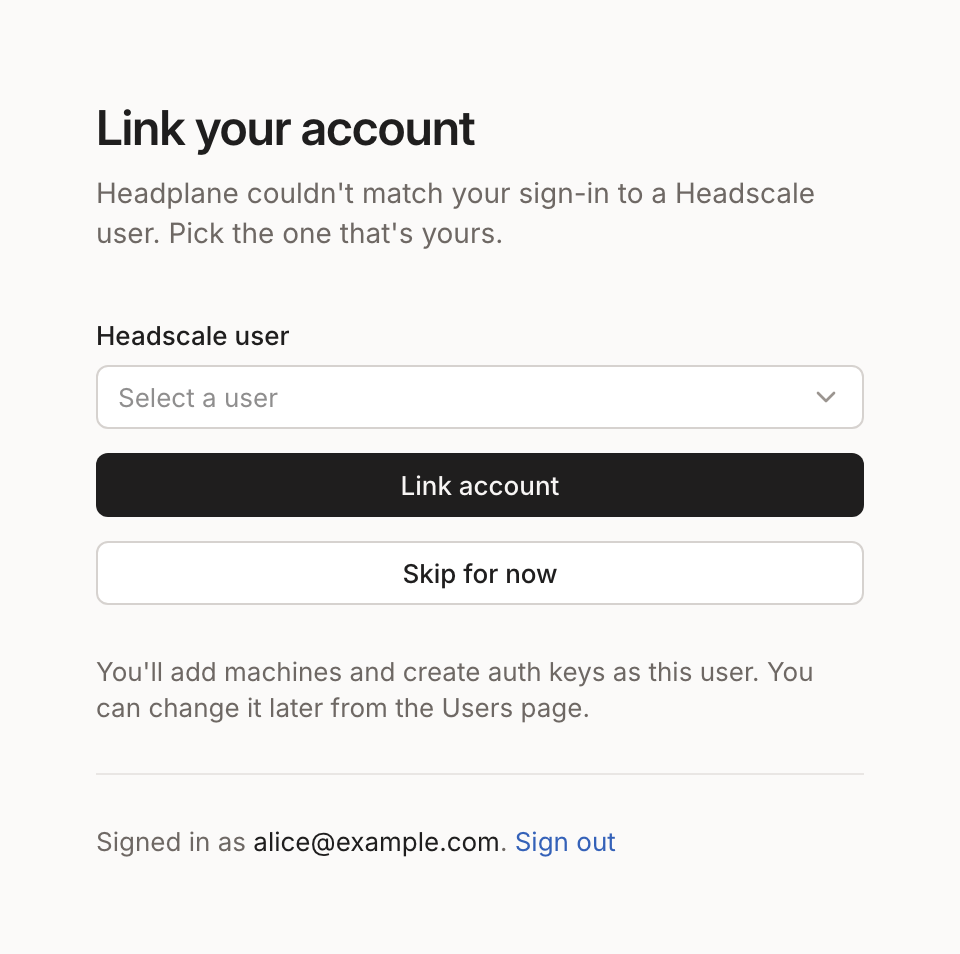
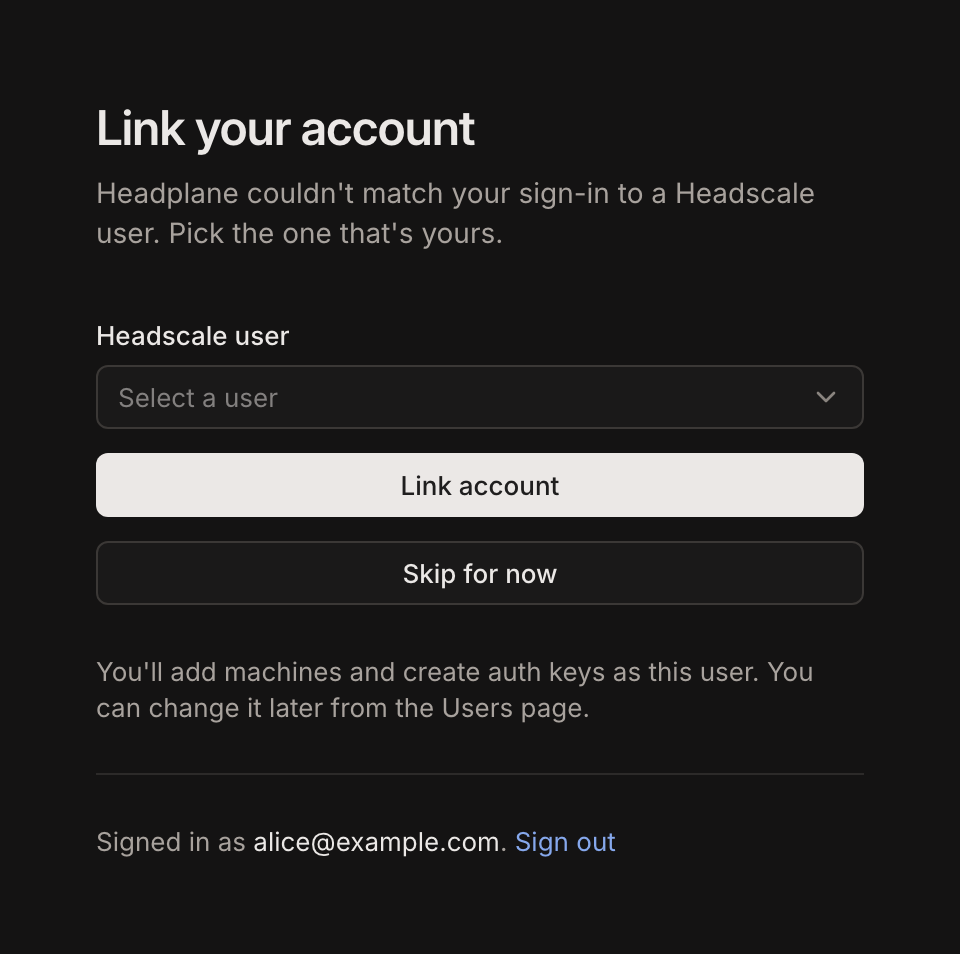
An account that matches no Headscale user stays unlinked. Owners, admins and IT admins see a Link your account screen after signing in, where they pick their own Headscale user. Everyone else has to be linked from the Users page by one of them. Linking by hand walks through both.
Roles from the identity provider
New accounts start as members. To give new SSO accounts a different starting
role, set oidc.default_role:
oidc:
  # admin, network_admin, it_admin, auditor, viewer or member
  default_role: "viewer"
This fits when Headscale already limits who can sign in, for example to one email domain, and everyone allowed in should be able to view Northplane.
For a role per person, set oidc.role_claim to a claim the provider fills
with a Northplane role, as a string such as "admin" or an array that contains
one. In Keycloak or Authentik, map a group or client role to that claim.
oidc:
  role_claim: "headplane_role"
A valid role claim wins over default_role, and it's applied again at every
sign-in, so a change at the provider reaches Northplane the next time that
person signs in. default_role only applies when an account is created.
Neither setting can grant or remove the owner role.
Signing out of the provider
By default, signing out only ends the Northplane session, and the provider still
considers the person signed in. With oidc.use_end_session: true, signing out
also sends the browser to the provider's sign-out page, which then returns to
Northplane.
oidc:
  use_end_session: true
The provider has to allow the return address, or it shows an error after
signing out. Add https://headscale.example.com/admin/login?s=logout to the
client's allowed post-logout redirect URIs, or set
oidc.post_logout_redirect_uri to a different one. If the provider doesn't
advertise its sign-out page through discovery, set
oidc.end_session_endpoint.
Other options
| Option | Use it to |
|---|---|
use_pkce | Turn on PKCE, which some providers require. Only the S256 method is supported. |
scope | Request different scopes. The default is openid email profile. |
subject_claims | Fall back to other claims, in order, when the provider sends no sub. For Feishu/Lark, use ["open_id", "email"]. |
extra_params | Add query parameters to the authorization request, such as prompt: login. |
token_endpoint_auth_method | Force client_secret_basic or client_secret_post. Detected automatically otherwise. |
profile_picture_source | Take profile pictures from gravatar instead of the provider. |
allow_weak_rsa_keys | Accept ID tokens signed with RSA keys under 2048 bits. This weakens verification, so use it only until the provider rotates its key. |
authorization_endpoint | Set endpoints by hand, along with token_endpoint, userinfo_endpoint and jwks_endpoint, for providers without discovery or to override discovery. |
Troubleshooting
The sign-in page shows what went wrong, and Northplane's logs have the details.
- "Single sign-on is unavailable": Northplane can't reach the issuer. Check that the issuer URL is right and reachable from Northplane's server or container. It retries on the next sign-in.
- "Single sign-on is misconfigured": the page lists the cause. Usually
headscale.api_keyis invalid or expired (see rotating the server's key), or the provider doesn't support discovery and the endpoints need setting by hand. - The provider shows a redirect URI error: the registered redirect URI
doesn't match
server.base_urlfollowed by/admin/oidc/callbackexactly, including the scheme, with/adminreplaced by any customserver.base_path. - Errors that mention
code_verifieror PKCE: the provider requires PKCE. Setoidc.use_pkce: true. - "The SSO provider did not return a valid user identifier": the provider
sends no
subclaim. Setoidc.subject_claimsto a stable claim, and only fall back toemailif emails never change. - Signing in returns to the sign-in page: the browser is dropping the session cookie. See Signing in does nothing.
- Someone signs in but has no machines: their account isn't linked to a Headscale user. See how accounts match.